
How to Change Your Background in Google Chrome: 3 Easy Ways
You can change your Google Chrome background in a minute or two: choose a built-in theme, upload your own photo, or install an extension that sets a fresh photo every time you open a new tab. Here are all three methods, step by step, and how to choose between them.
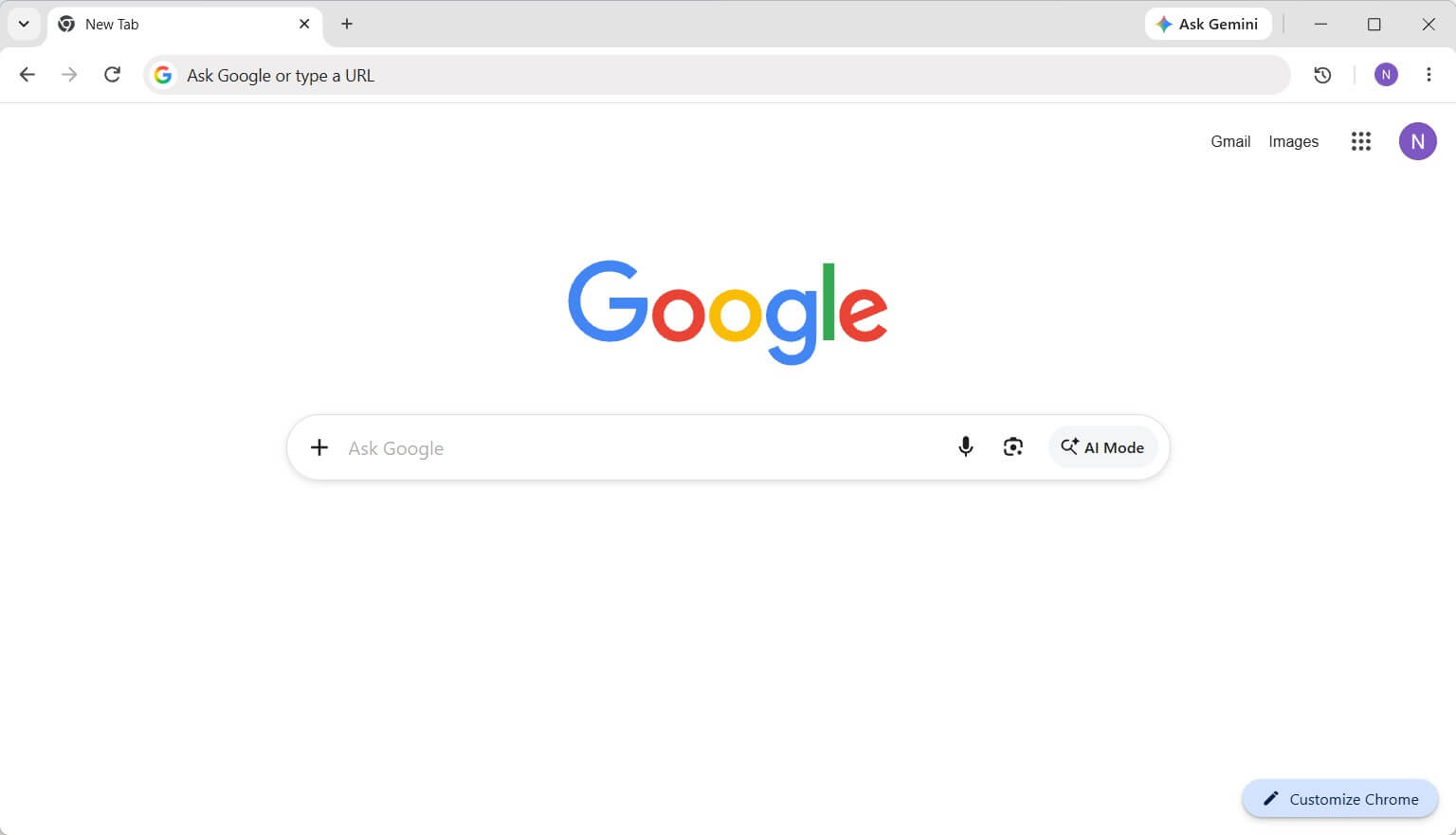
At a glance:
- Google's built-in themes — quick and easy, but limited selection.
- Your own picture or photo — best if you want to see a specific personal image.
- Extension with automatic photo rotation — a new high-resolution photo on every new tab.
Method 1. Built-in Chrome Themes and Collections
Chrome includes built-in customization for the new tab page, so you don't need any extra software for this method.
- Open a new tab (
Ctrl + Ton Windows and Linux,Cmd + Ton Mac). - In the bottom-right corner, click Customize Chrome (the pencil icon).
- In the side panel that opens, click Change theme.
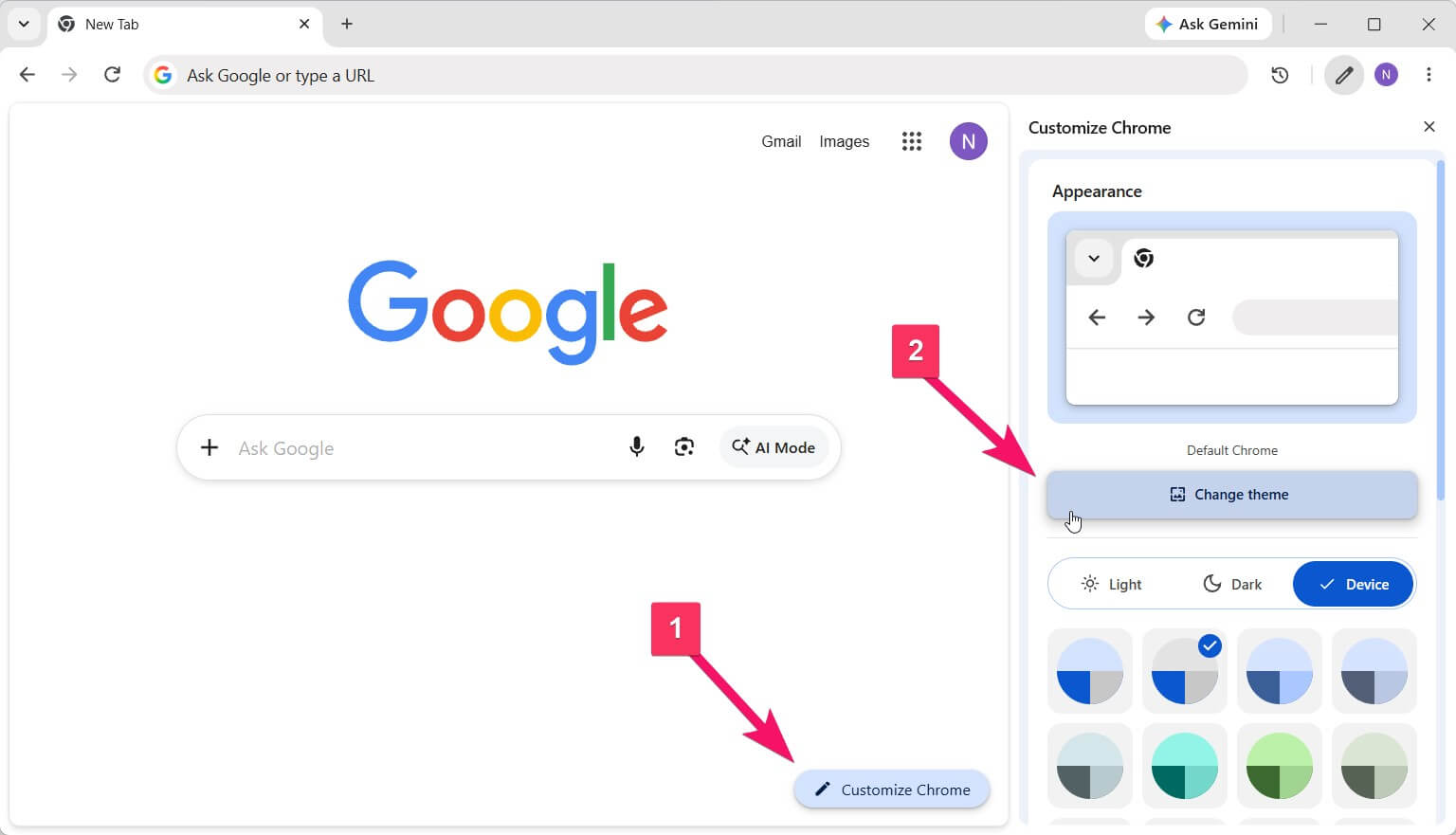
- Select one of the categories: Landscapes, Textures, Earth, Art, and more.
- Click on the image you like best.
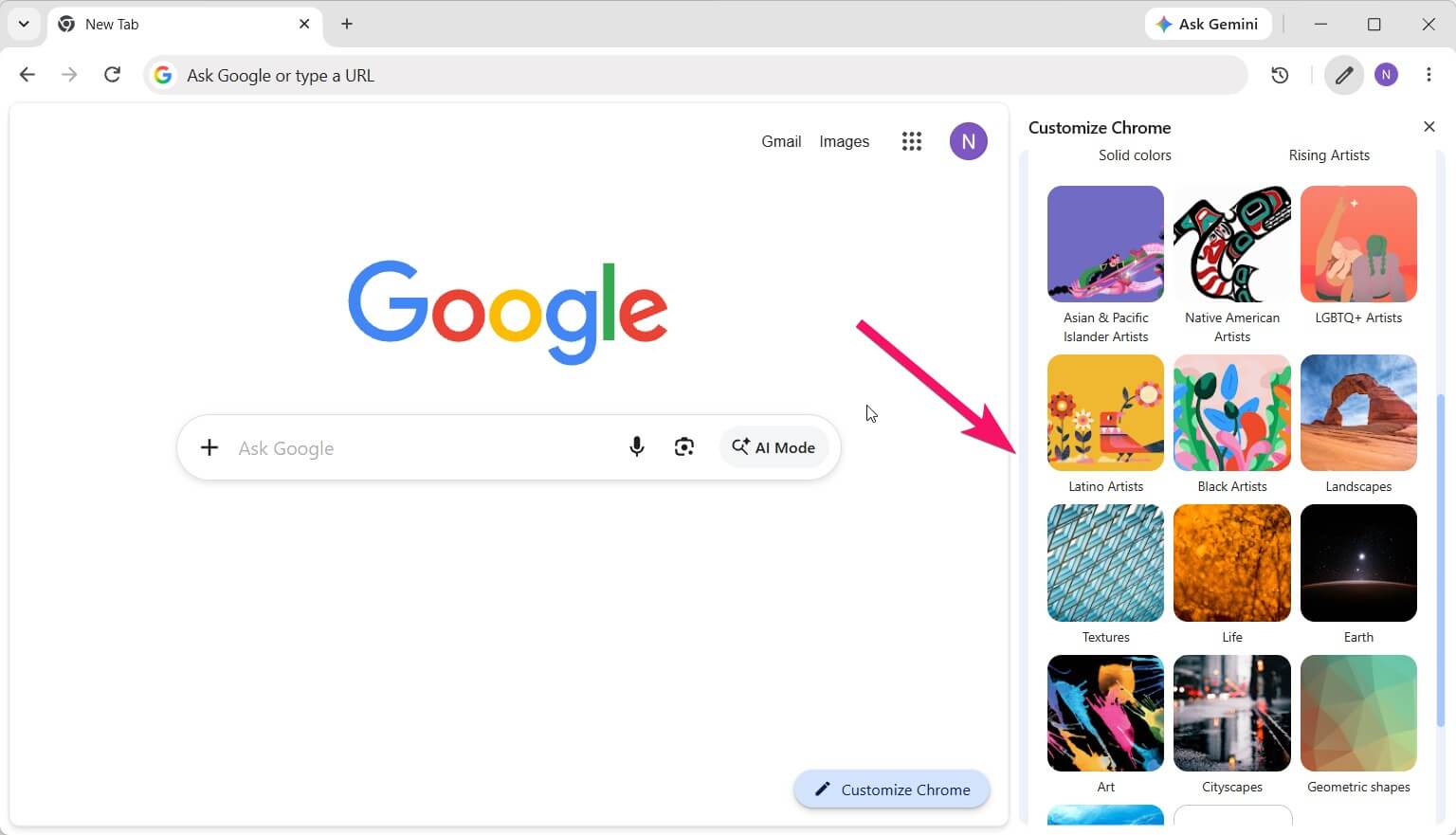
- Optional: turn on the Refresh daily toggle, and Chrome will display a new image from your chosen category once every 24 hours.
Limitations: The selection of photos is relatively small, and the background updates at most once a day.
Method 2. How to Set Your Own Picture as Chrome Background
If you want to see a vacation photo, digital art, or a wallpaper you like, you can upload any image from your computer.
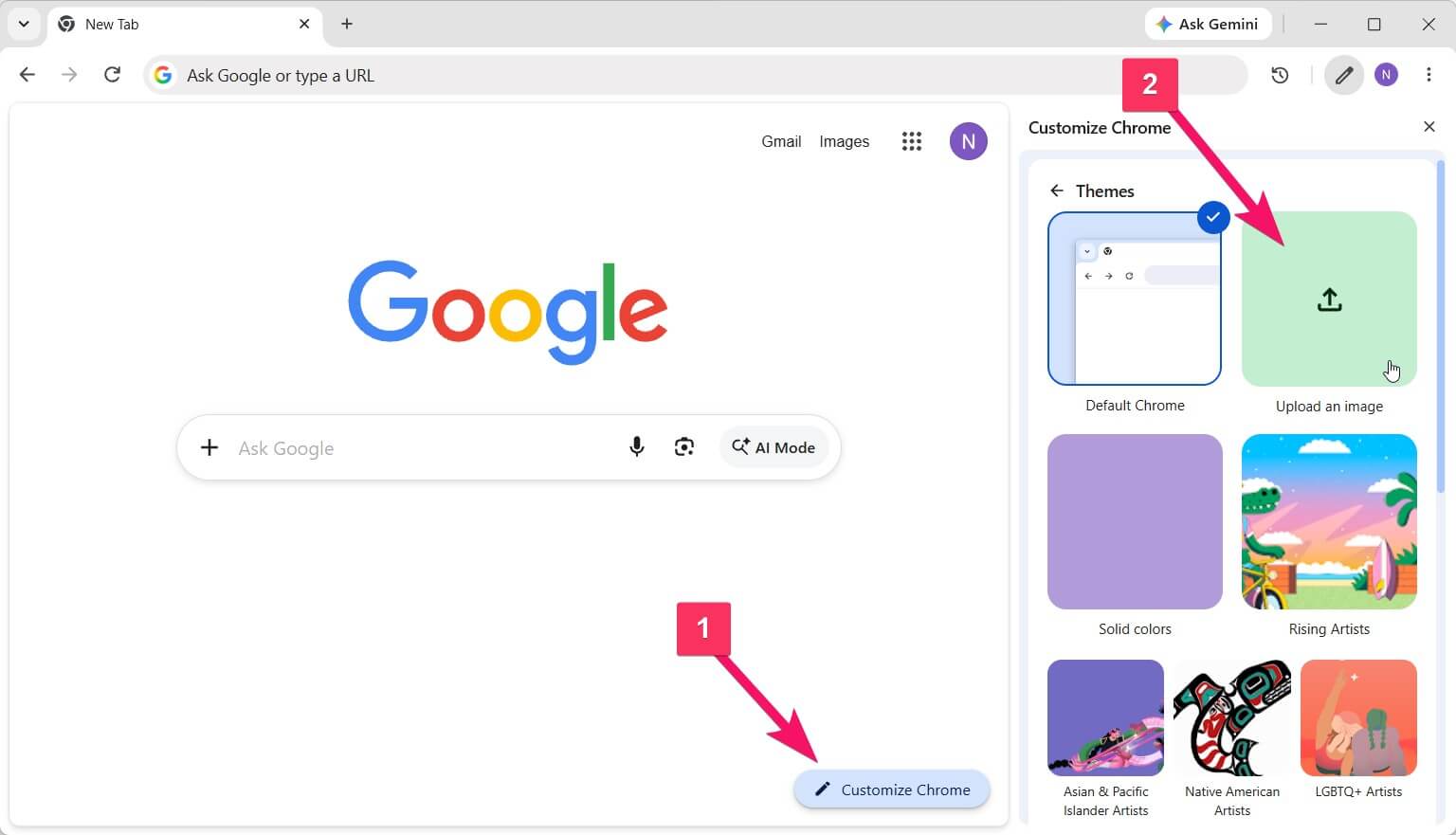
- Open a new tab and click Customize Chrome (the pencil icon in the bottom right).
- In the side panel, click Upload an image.
- Select your image file and click Open.
How to Prepare Your Image
- Resolution: Match or exceed your display resolution — at least Full HD (1920×1080) or 4K (3840×2160). Lower resolutions will look blurry or pixelated.
- Aspect ratio: 16:9 or 16:10 works best for most monitors and laptops.
- Visual contrast: Images that are too busy or have bright center elements can make bookmarks and search bar text harder to read.
Main drawback: A static picture gets old quickly. To change it, you have to find a new file and upload it manually every time.
Method 3. Automatic Photo Rotation with the Beautiful Photos Extension
If you don't want to search for wallpapers manually, install the free Beautiful Photos extension. It shows landscapes and other photos from Unsplash on your new tab and changes the photo every time you open a tab.
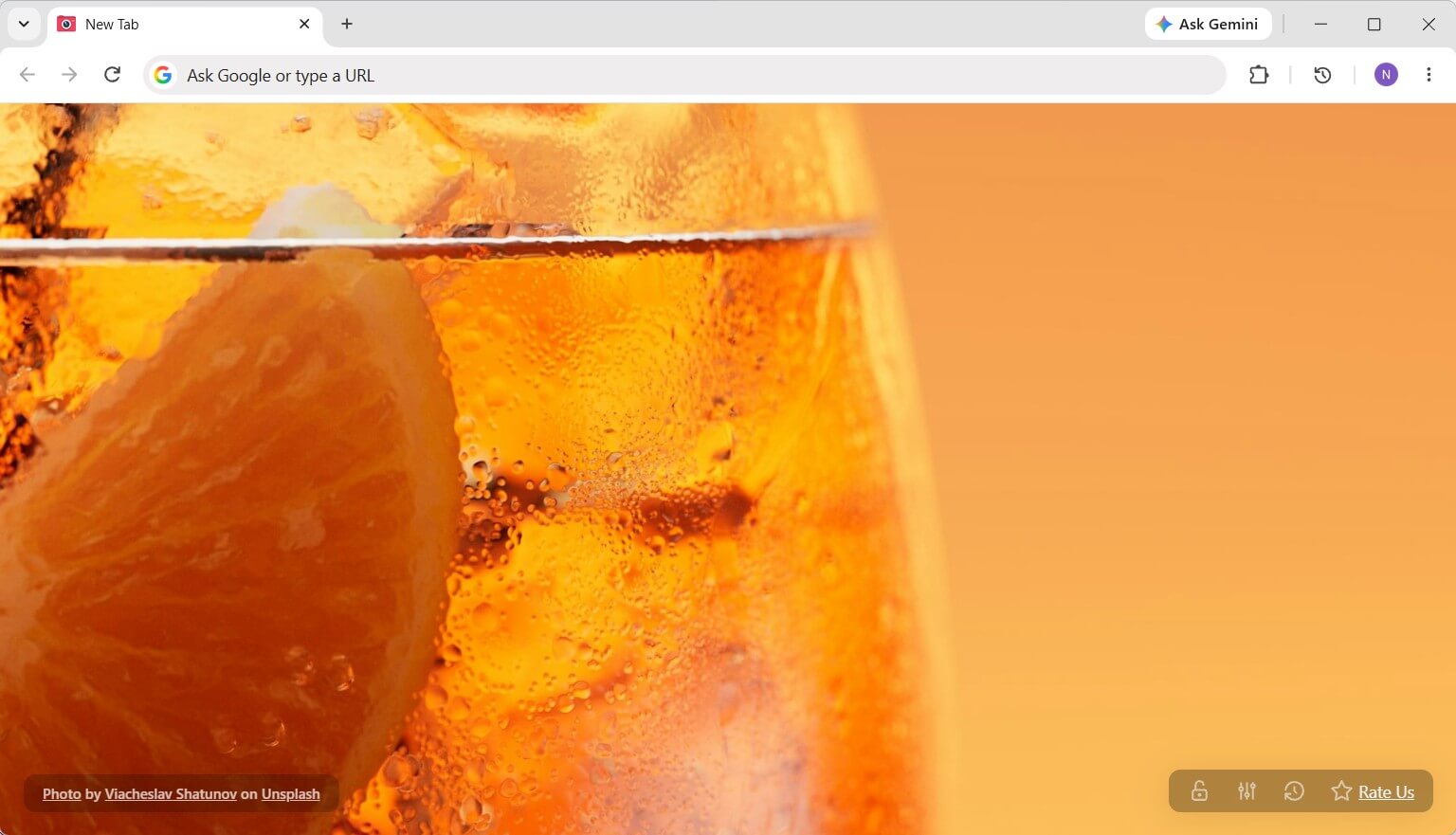
You can also show a clock and a personal note or quote over the photo. All of it is customizable and can be turned off.
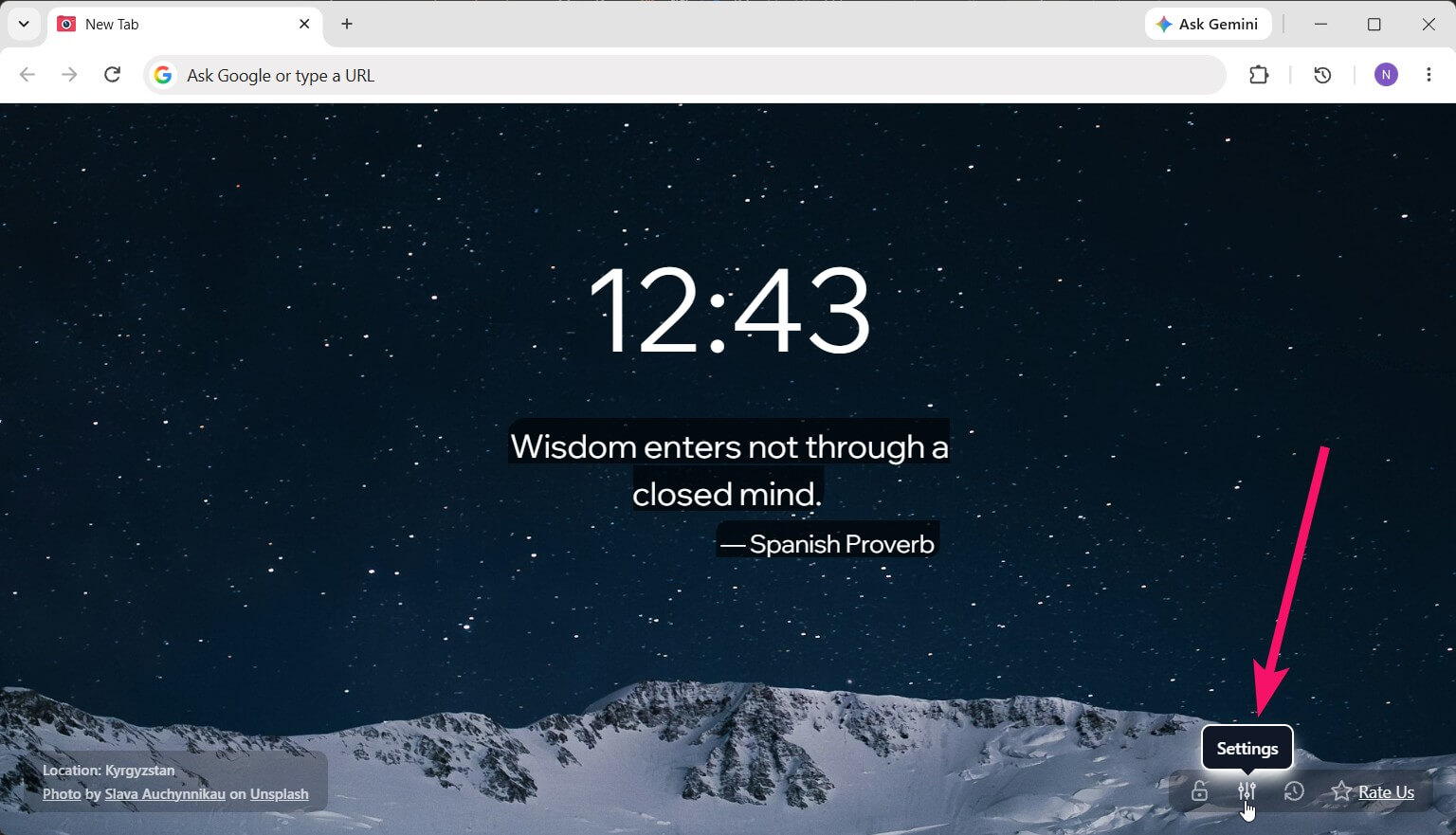
What the Extension Does
- A new photo on every tab: high-resolution landscape and nature photos, no manual searching.
- If you love a particular shot, lock it with one click and it will stay on all your new tabs.
- Closed a tab with a great photo? Find it in your recent photo history.
- Clock: 12-hour or 24-hour format, font, size, and weight. If the photo is too busy, you can turn on a light blur behind the digits.
- Instead of a quote, you can show a personal note: your goal for the day or a reminder to yourself.
Which Method Should You Choose?
| Method | Photo Selection | How Often It Updates | Effort Required |
|---|---|---|---|
| Built-in Themes | Small built-in collections | Once a day | A couple of clicks |
| Custom Image | Single file from your PC | Only manually | Find and upload a file |
| Beautiful Photos | Constantly updated selection | With every new tab | Install once |
How to Install
- Open the extension page on the Chrome Web Store.
- Click Add to Chrome and confirm the installation.
- Open a new tab (
Ctrl + T/Cmd + T). If Chrome asks whether to keep the extension, click Keep it.
Frequently Asked Questions (FAQ)
Why does the background change only on the new tab page?
In Google Chrome, background customization applies strictly to the initial start page (chrome://newtab). Individual websites control their own page styling and background colors.
Does a wallpaper extension slow down Chrome?
Beautiful Photos prefetches upcoming photos in the background and caches them locally, so new tabs open without waiting for the image to load.
How do I restore the default white background in Chrome?
If you customized your background through Chrome's standard menu: click the three-dots menu → More tools → Customize Chrome → Change theme → Default Chrome.
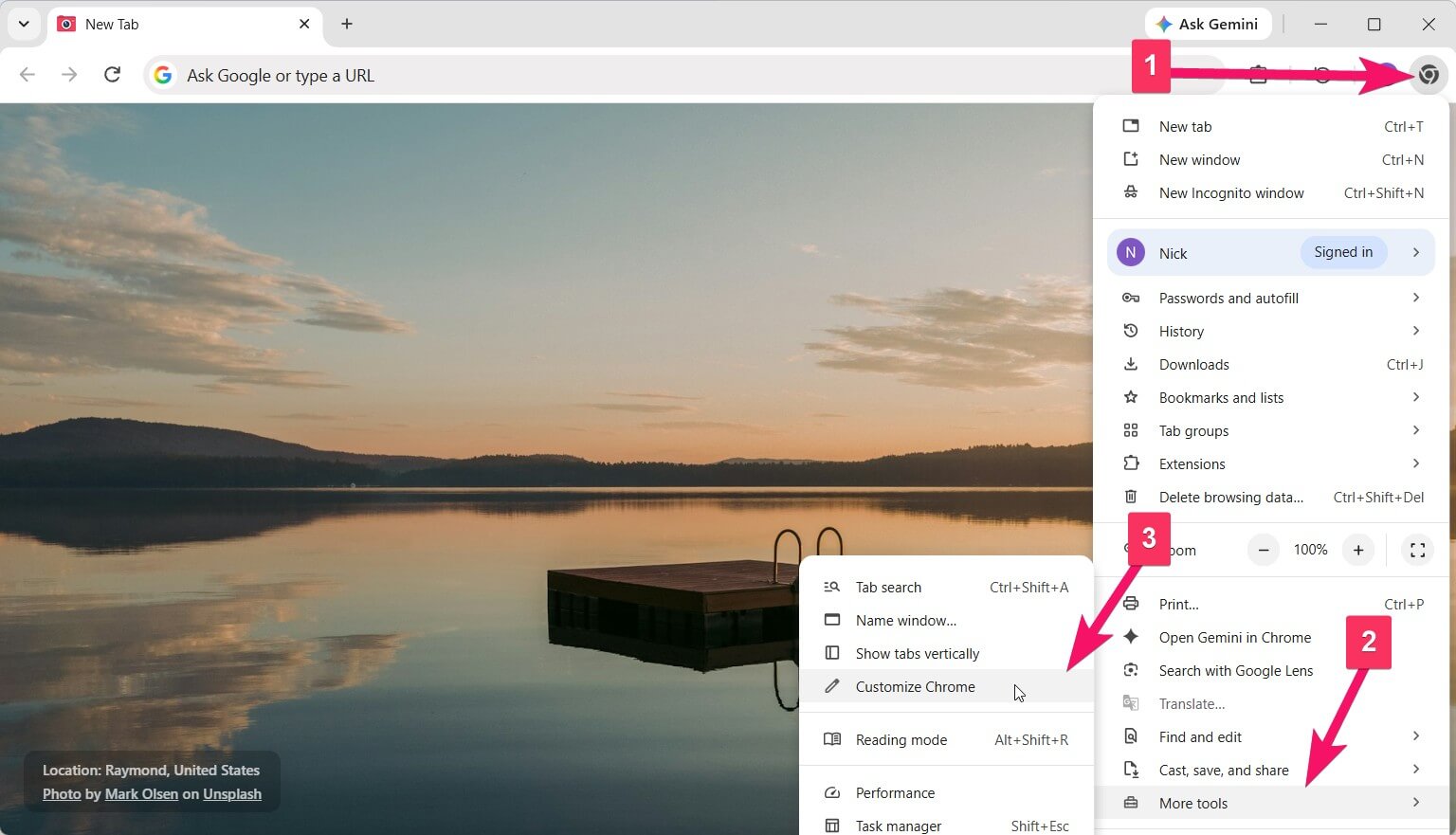
This resets the theme and restores the classic clean background. To disable or remove an extension, navigate to chrome://extensions in your address bar.
Can you set a GIF or animated video as a Chrome background?
Chrome's built-in settings only support static images. Videos and animated GIFs are not supported.
How do I get a dark background in Chrome?
Select a dark theme under Change theme, upload a dark wallpaper, or switch Chrome to Dark Mode in your system settings. Beautiful Photos shows photographs rather than solid colors, so how dark the background looks depends on the photo.
Can I change the Chrome background on mobile (Android / iOS)?
Mobile Chrome does not support custom new tab backgrounds or browser extensions. These methods work only on desktop computers.