
How to Change the Background on a Chromebook
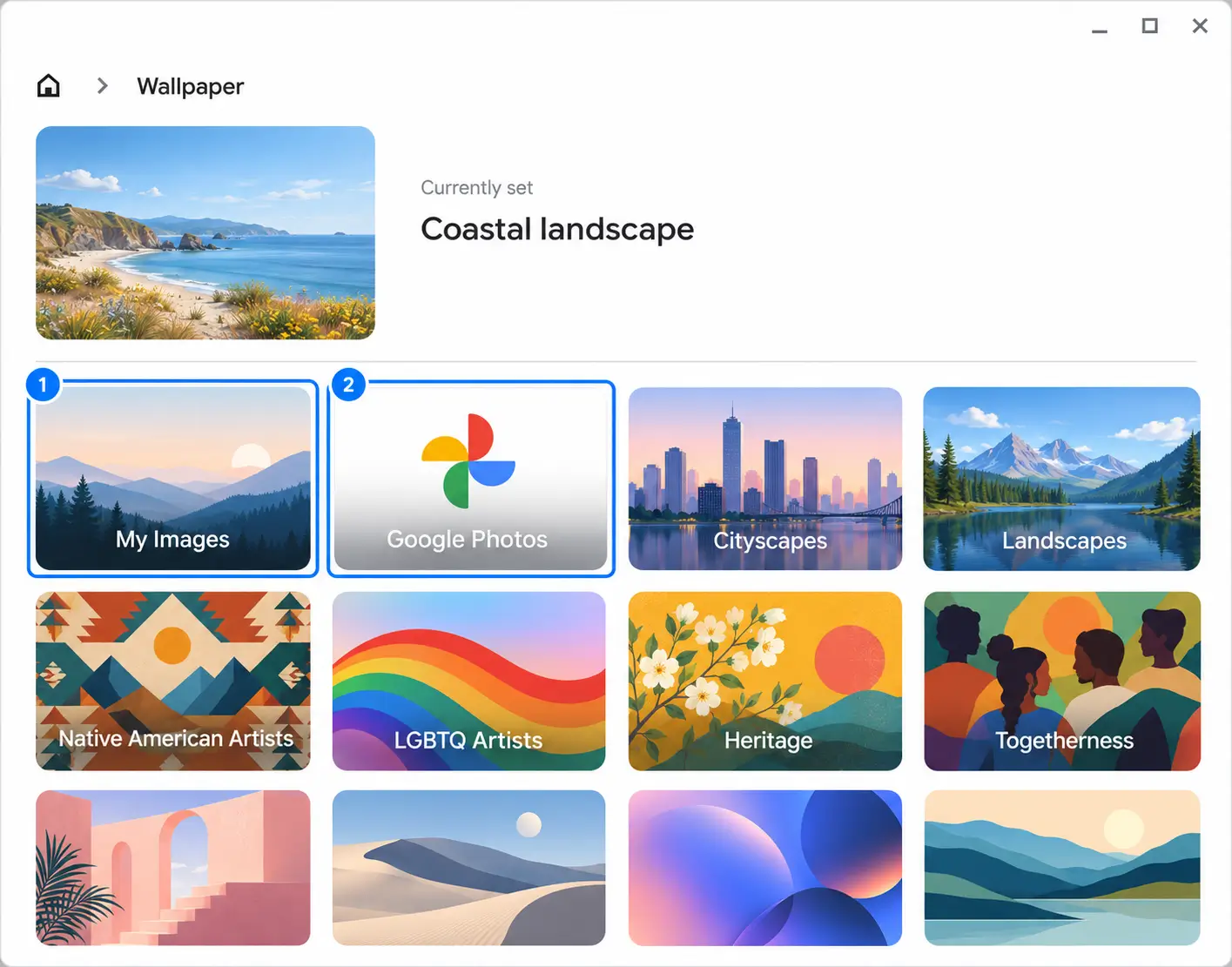
To change your Chromebook desktop wallpaper, right-click any empty space on your desktop and select Set wallpaper & style → Wallpaper. From there, you can pick any built-in background or select your own photo.
On ChromeOS, there are two distinct backgrounds you can customize:
- Desktop wallpaper — the background behind your windows and app shelf.
- Chrome new-tab background — the page you see whenever you open a new tab in the browser.
Below, we'll cover how to customize your desktop wallpaper, how to set your own pictures, how to rotate photos daily, what to do on managed school devices, and how to get fresh backgrounds in your Chrome tabs.
Change your Chromebook's desktop wallpaper
ChromeOS includes a built-in personalization hub with several curated wallpaper collections, including landscapes, cityscapes, art, and solid colors.
- Right-click anywhere on the empty desktop.
- Click Set wallpaper & style, then select Wallpaper.
- Browse the collections and click any image to preview and apply it instantly.
Tip: You can also open this menu through system settings: click the time in the bottom-right corner of your screen, open Settings (the gear icon), navigate to Personalization in the left sidebar, and click Set your wallpaper & style.
Use your own photo as the wallpaper
If you want a personal photo, a custom download, or your own digital art on your desktop, you have two ways to load it:
- My Images: Displays photos and image files saved locally in your Chromebook's Files app (such as your Downloads folder).
- Google Photos: Lets you browse albums directly from your connected Google Photos library without downloading files first.
- Open Set wallpaper & style → Wallpaper.
- Select My Images for local files, or click Google Photos to browse your cloud albums.
- Click your photo to set it as the background.
Tips for choosing the right image
- Resolution: Use an image that matches or exceeds your screen resolution (at least 1920×1080 for Full HD Chromebooks). Lower-resolution pictures will stretch and look pixelated.
- Aspect ratio: Standard 16:9 or 16:10 landscape photos fit Chromebook displays naturally without awkward cropping.
- Contrast: High-contrast photos with very busy centers can make your desktop shortcuts and the bottom shelf harder to scan. Calmer landscapes or muted tones work best.
Change your wallpaper every day
If you get tired of seeing the same image every time you minimize your windows, ChromeOS can automatically cycle wallpapers for you.
- Open Set wallpaper & style → Wallpaper.
- Click into any curated collection (or any album in Google Photos).
- At the top of the collection, turn on the Change daily toggle.
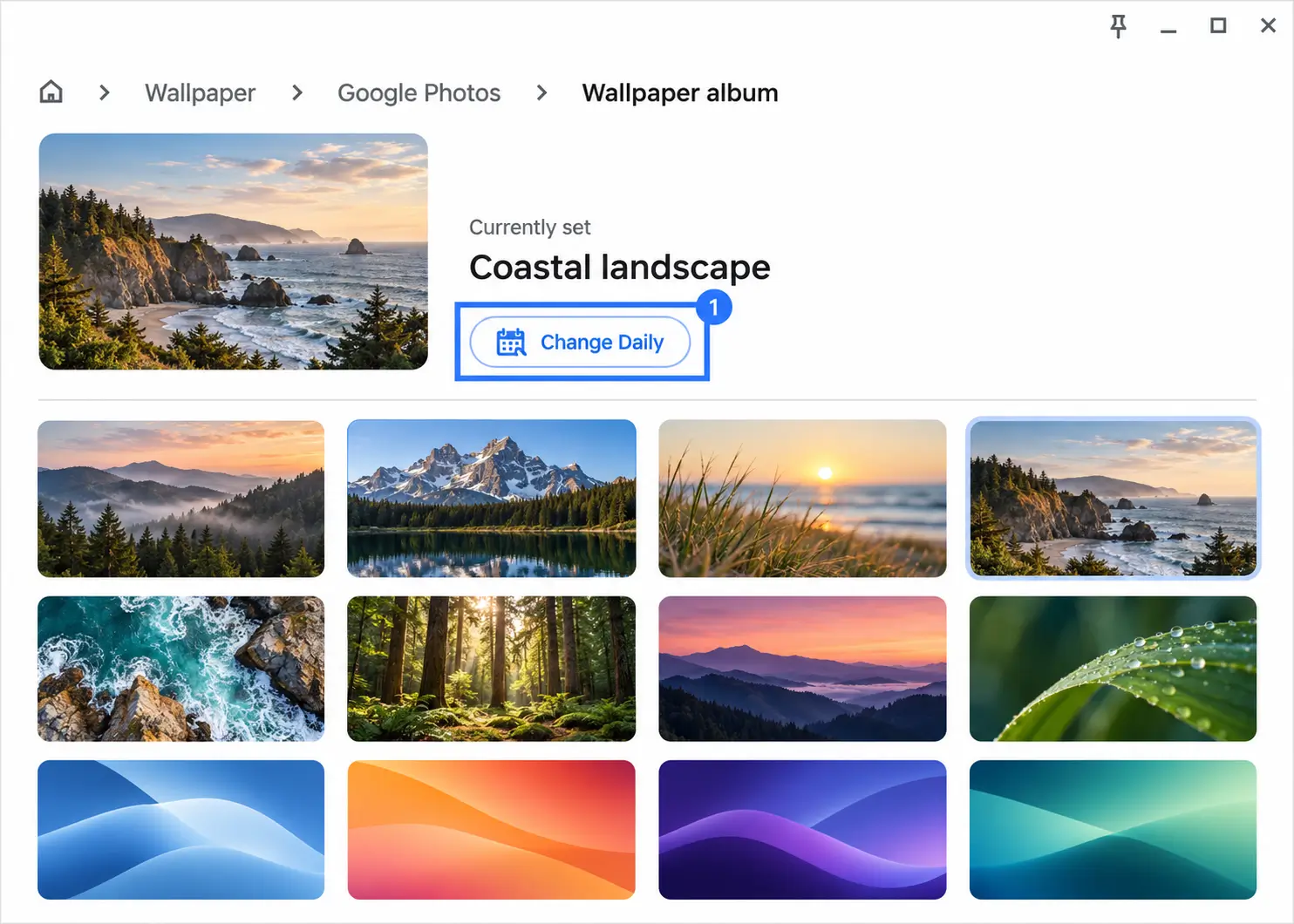
Once enabled, ChromeOS will pick a fresh image from that album once every 24 hours.
Note: The "Change daily" toggle applies strictly to your desktop. Because most Chromebook work happens inside the browser, you might want fresh photos in your browser tabs as well.
What if you can't change the wallpaper?
If the wallpaper option is grayed out, missing, or your chosen image fails to display, here are the most common causes:
- School or work account restrictions: If your Chromebook is managed by a school or organization, IT administrators frequently lock the wallpaper policy via Google Admin Console. When locked, you cannot change the desktop wallpaper, and opening the personalization menu may show a message that the setting is managed by your administrator.
- Unsupported image format: ChromeOS wallpaper supports standard formats like JPG and PNG. WebP files, GIFs, or HEIC files from an iPhone might not load properly. If an image fails to apply, convert it to JPG or PNG in the Files app or a web tool before setting it.
- Corrupted local download: If setting a file from "My Images" fails, try moving the file to your Google Drive or Google Photos, then selecting it through the cloud tab instead.
Change the new-tab background on your Chromebook
Your desktop wallpaper sits behind your apps, but since most Chromebook activity happens inside Chrome, the background you see most often is the New Tab page.
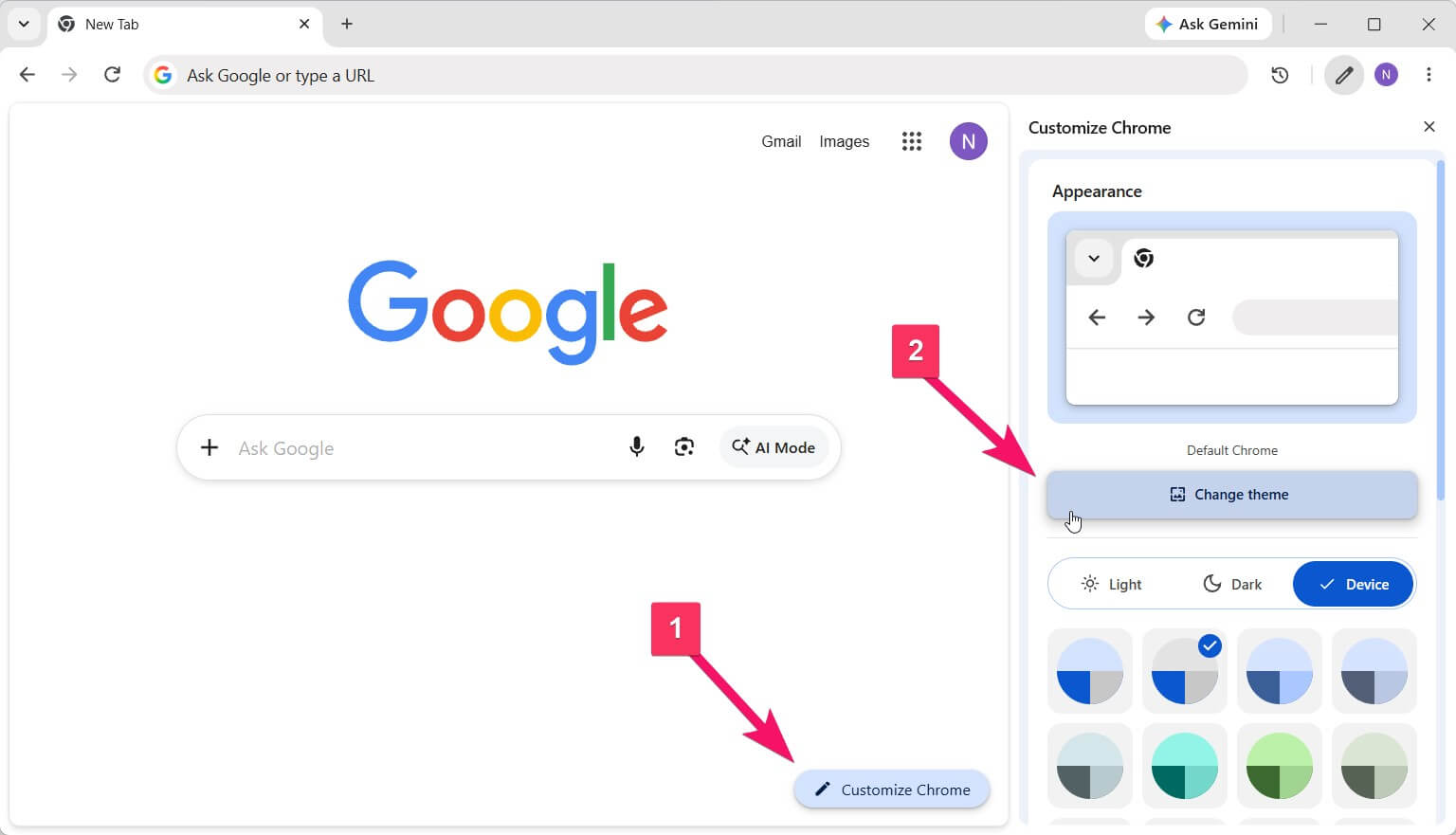
You can customize this page using Chrome's built-in side panel:
- Open a new tab (
Ctrl + T). - Click Customize Chrome (the pencil icon) in the bottom-right corner.
- Under Appearance, click Change theme.
- Pick one of Google's theme collections, or click Upload an image to use a personal photo.
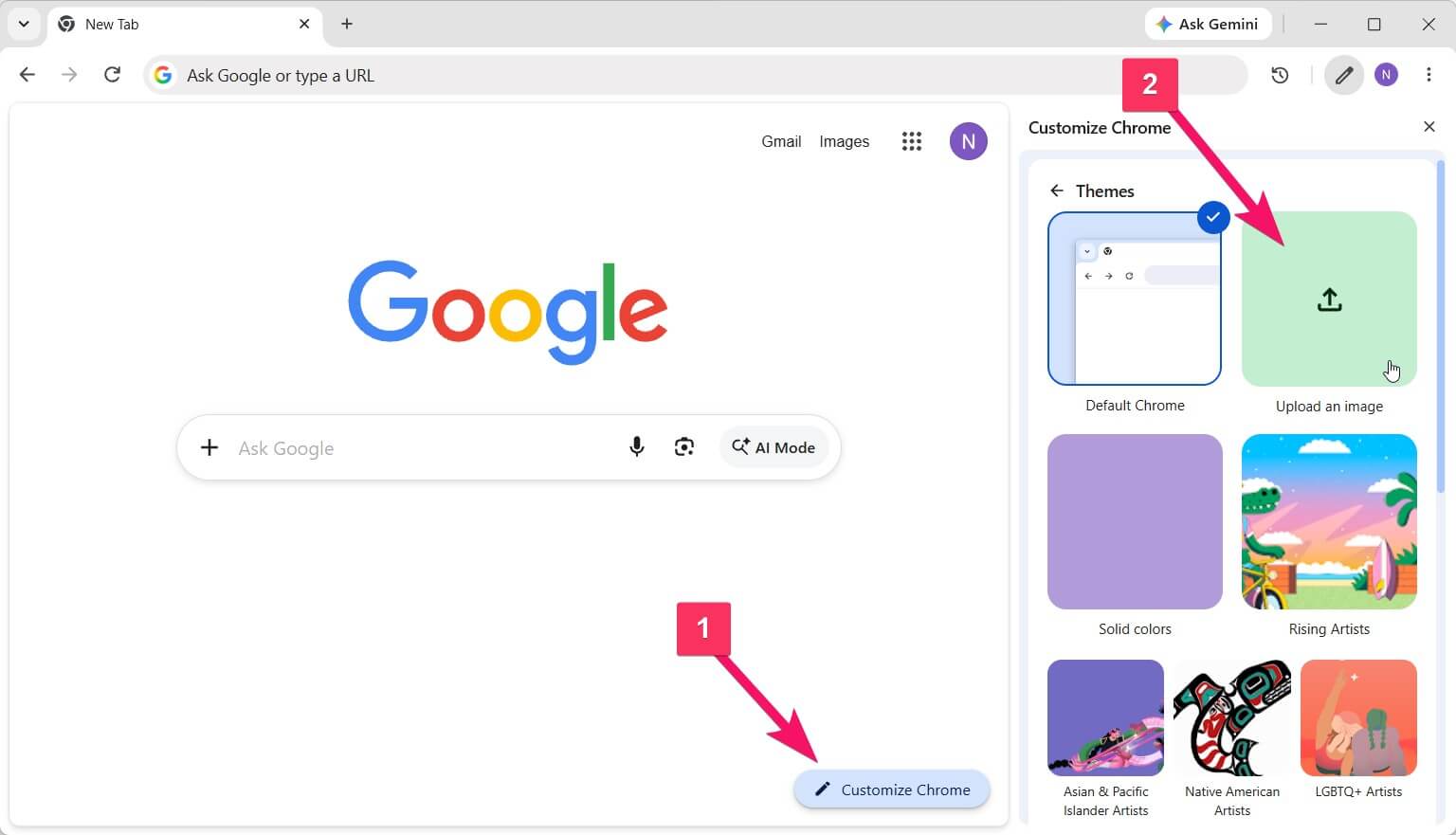
For a complete walkthrough of Chrome's built-in themes and color palettes, see our dedicated guide to changing your Chrome background.
Automatic photo rotation with Beautiful Photos
While ChromeOS can change your desktop wallpaper once a day, many people want visual variety every time they work — without having to manually hunt down wallpapers or upload files.
That is why I created Beautiful Photos.
I used to rely on Unsplash Instant to get a crisp, stunning landscape photo on every new tab. When that extension disappeared from the Chrome Web Store, I looked at alternatives, but found them bloated with cluttered widgets, weather trackers, and complex menus. I just wanted a fast, lightweight new tab with inspiring photography.
So I built Beautiful Photos to keep things fast, minimal, and focused on great imagery:
- A new photo on every tab: Curated high-resolution landscapes from Unsplash load instantly via background prefetching.
- Pinning: When you come across a photograph you love and want to keep around, lock it with one click so it stays on your new tabs.
- History: If you opened a tab quickly and missed an incredible shot, you can open your recent photo history to find it and pin it.
- Optional clock & notes: You can enable a clean clock or a personal focus reminder, or keep the screen completely minimal.
Which background option should you choose?
| What you want | Where to start | How often it updates |
|---|---|---|
| Single favorite desktop picture | Set wallpaper & style → My Images | Stays until you change it |
| Daily rotating desktop scenery | Set wallpaper & style → Change daily | Once every 24 hours |
| Custom picture on Chrome new tabs | Customize Chrome → Upload an image | Manual updates |
| Fresh high-res photography on every tab | Beautiful Photos | Every new tab (with pinning & history) |
If you want your Chromebook to feel fresh throughout the day, add Beautiful Photos from the Chrome Web Store — it's free and takes seconds to install.